Backups
Browse full and differential backups
Attach a matching differential, inspect changes and choose how to browse the data.
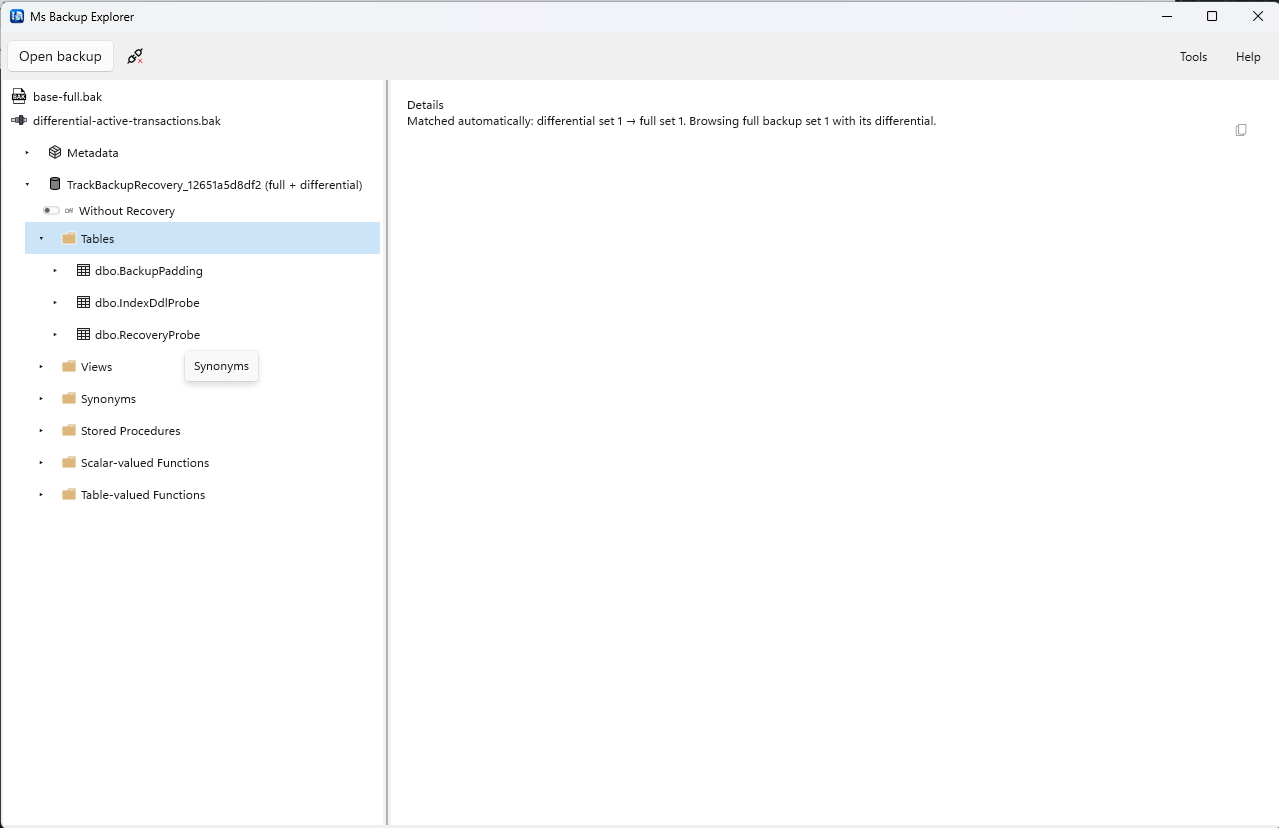
Add a matching differential
- Open the full backup and select its backup set.
- Select Add Differential in the backup toolbar.
- Choose the matching differential. If either backup is striped, select all files for that backup together.
- Browse the combined tables and objects. Use Remove Differential to return to the full backup.
Inspect the differential changes
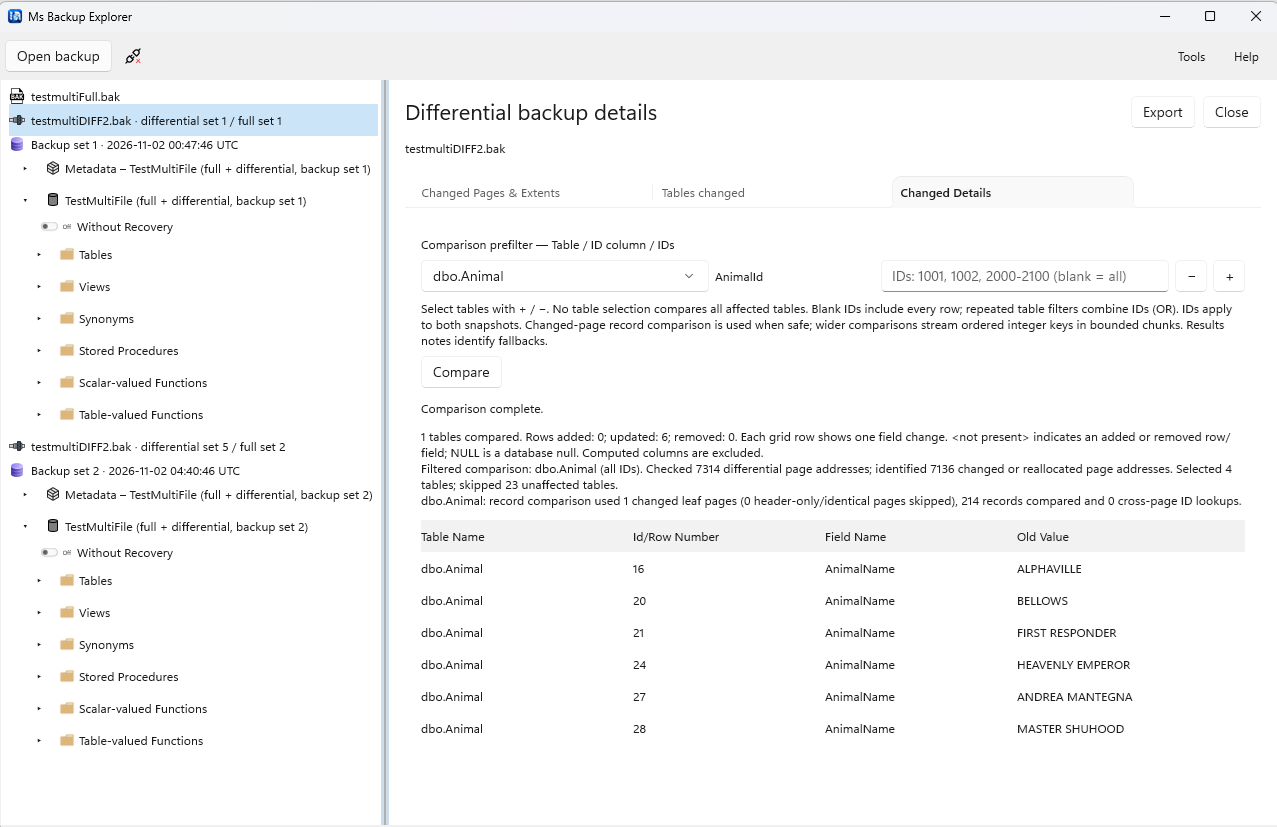
Review Changed Pages & Extents and Tables changed. An included page or extent may contain unchanged data.
Use Changed Details to inspect supported row and field changes. Review any warnings alongside the results. Free previews up to 100 field changes.
Choose how to view table data
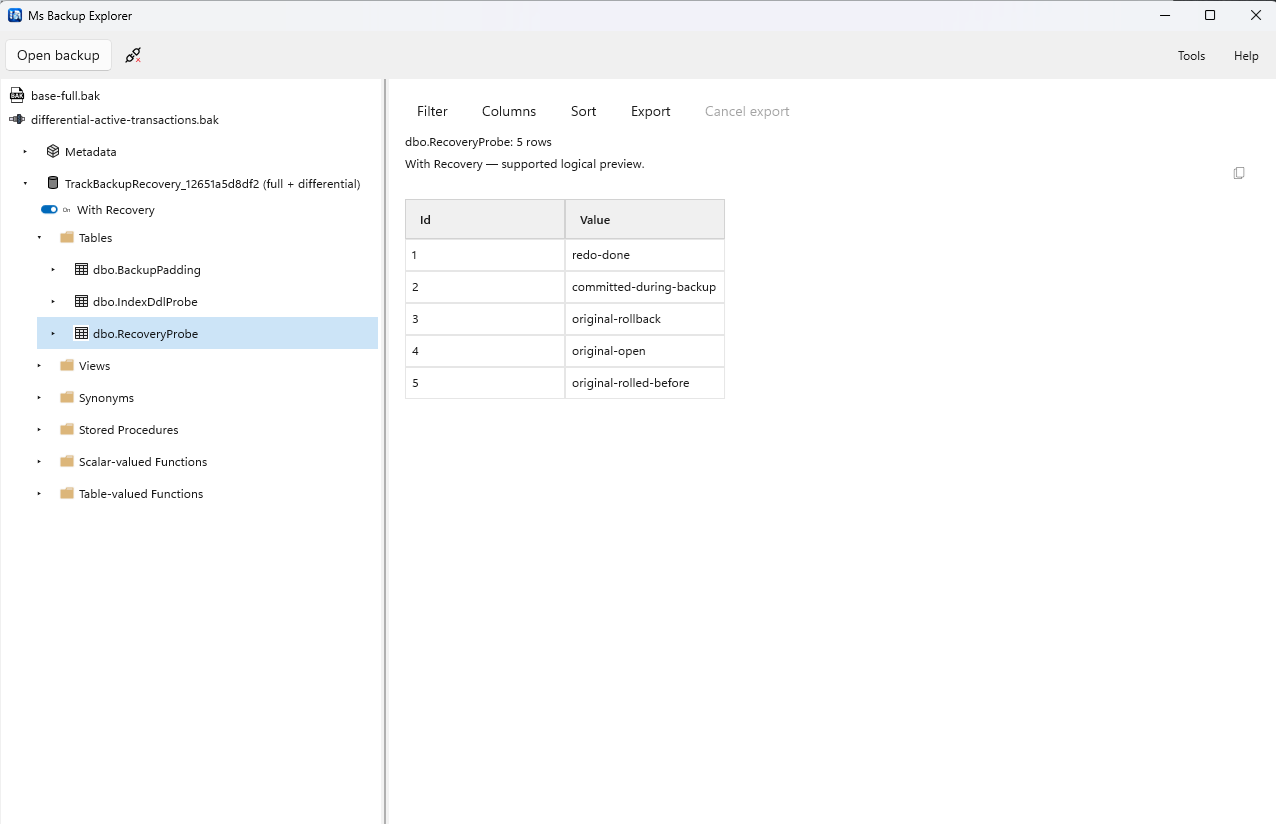
Without Recovery reads the stored backup data directly, using the combined pages when a differential is attached. With Recovery uses the embedded log to account for transactions when it can verify the selected table.
Use the switch under the backup set, then open a table. LOB data, fields with data >8000 bytes, currently not supported.