Export
Export the current view
Export filtered rows and selected columns to CSV or a supported database.
Prepare and capture the view
- Open a table and choose the required source row limit.
- Apply the filter, sort order and visible-column selection.
- Wait for filtering and sorting to finish.
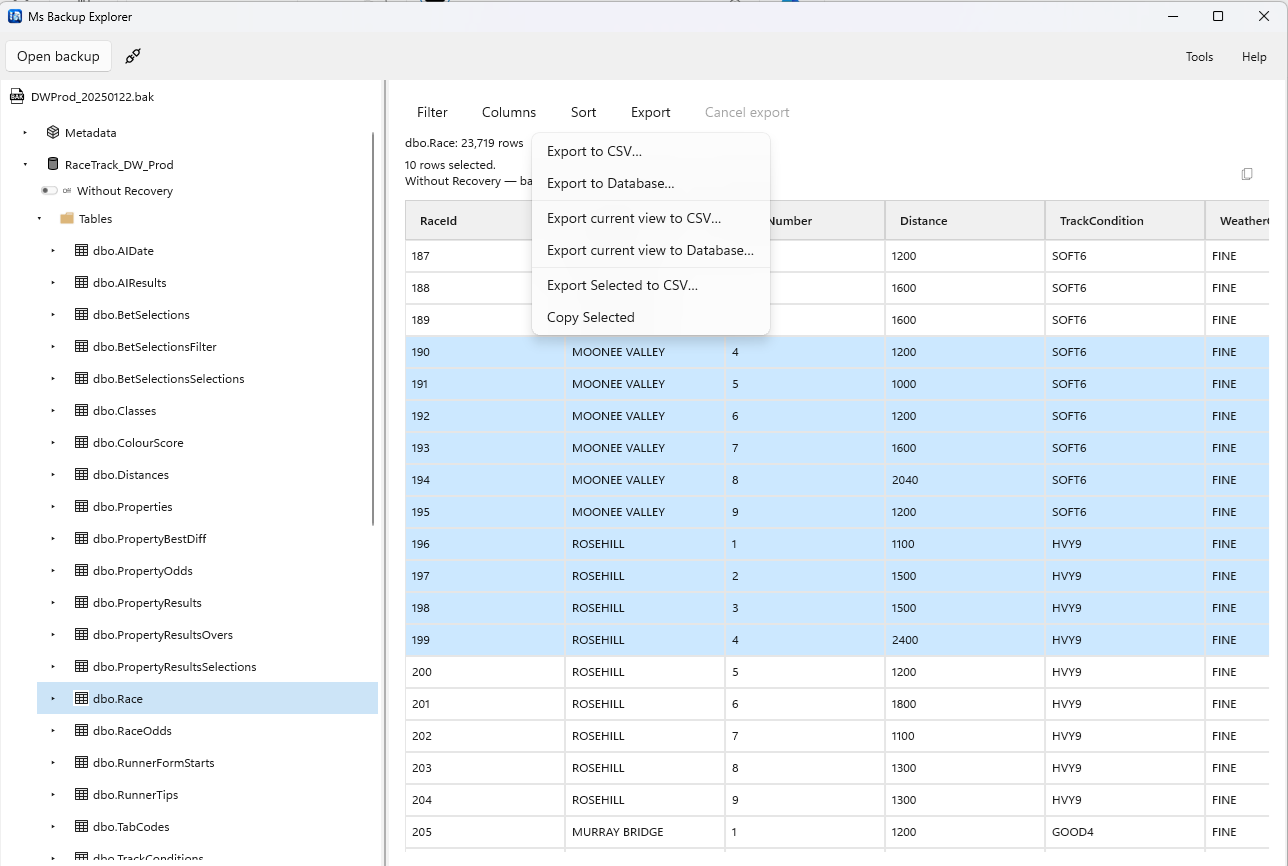
- Select Export above the grid and choose Export current view to CSV… or Export current view to Database….
Export to CSV
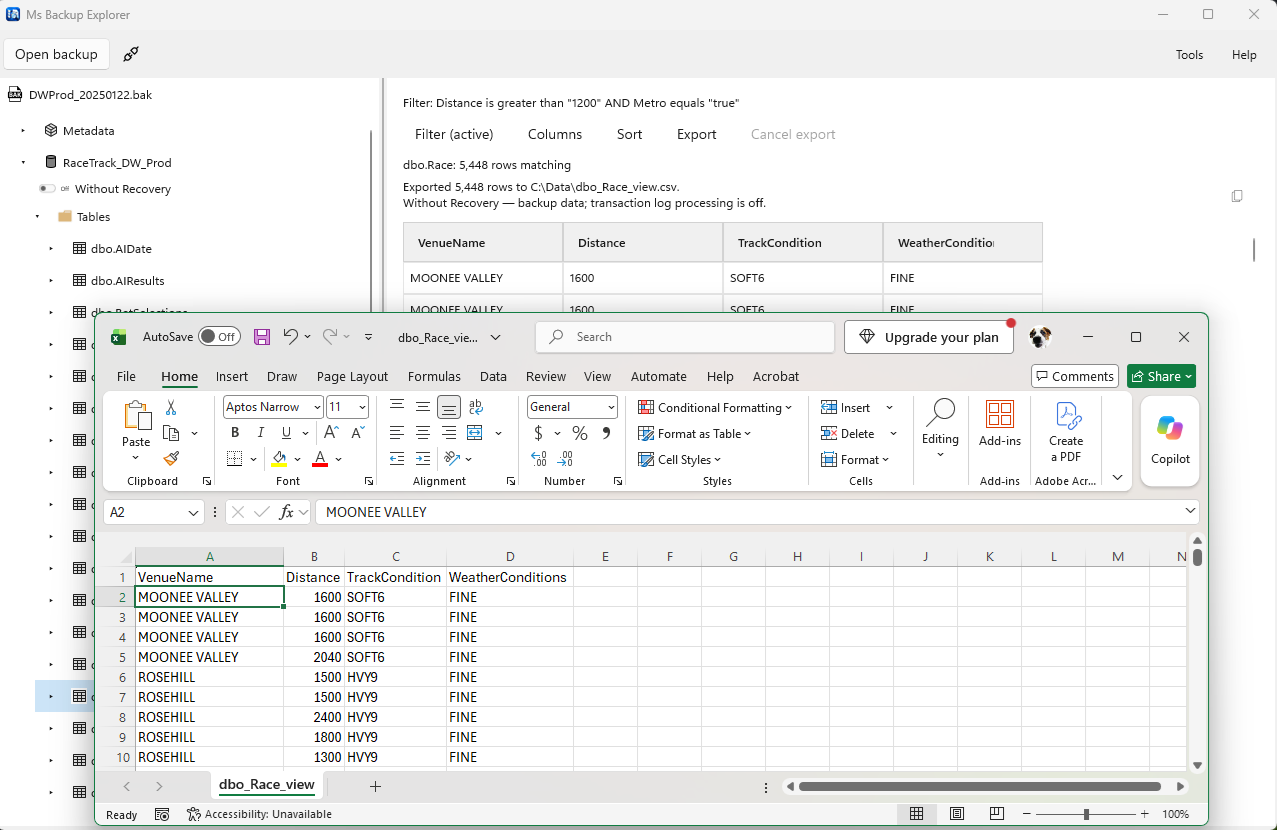
Choose a destination CSV filename. The export uses the captured filter and selected columns and preserves the sorted row order. Once the export finishes, inspect the saved CSV file. CSV export does not open a separate report screen.
Current-view export requires Pro. Returning to the original table view after export is expected; validate the saved file rather than looking for a report.
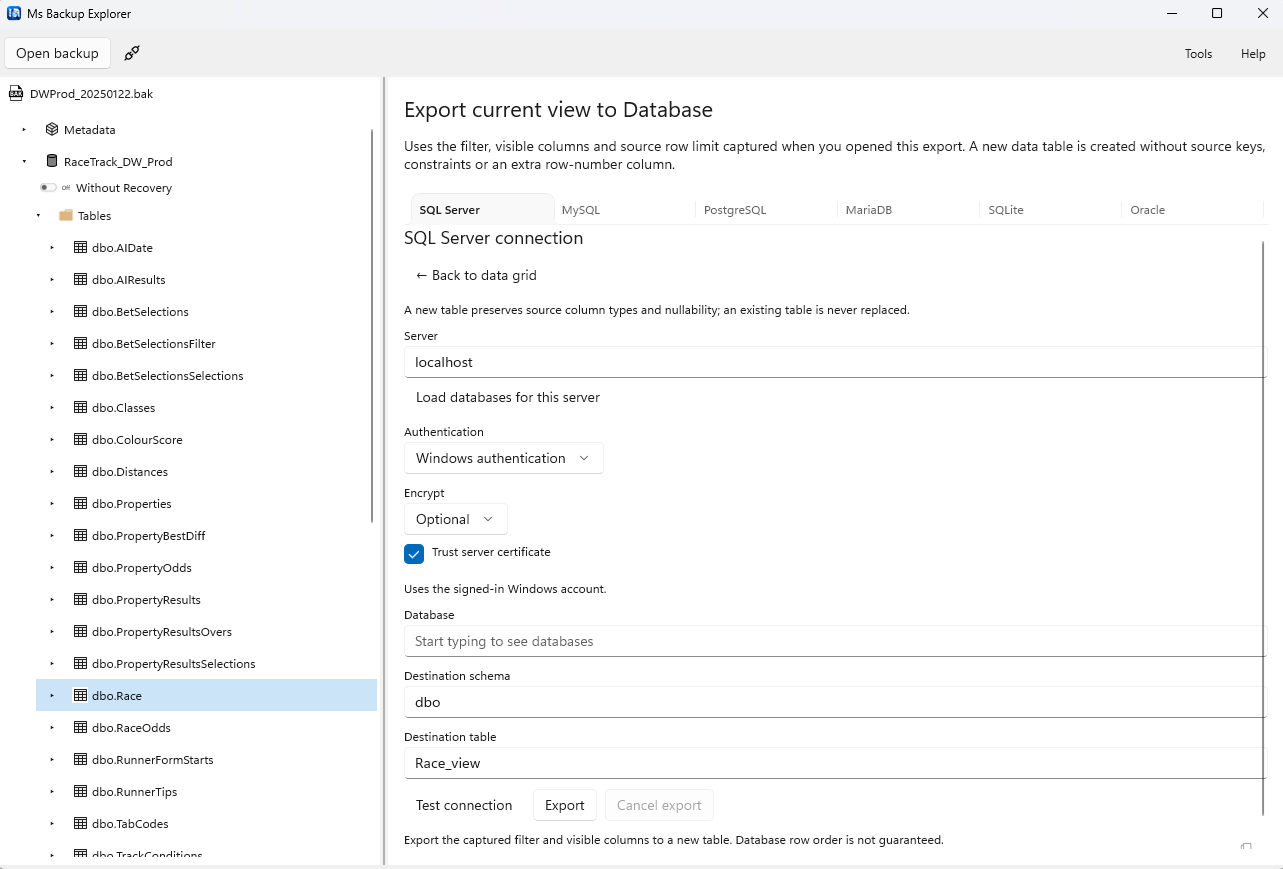
Export to a database
Choose a destination tab and enter the connection or database-file settings. The filter, visible columns and source row limit are captured for the export.
Current-view database export creates a data table without source keys, constraints or an extra row-number column. Database row order is not guaranteed. Standard table exports have different key options. After export, check the table in the destination database; a separate report is not shown for every export path.