Destinations
Export to MySQL
Configure MySQL output and validate the exported data.
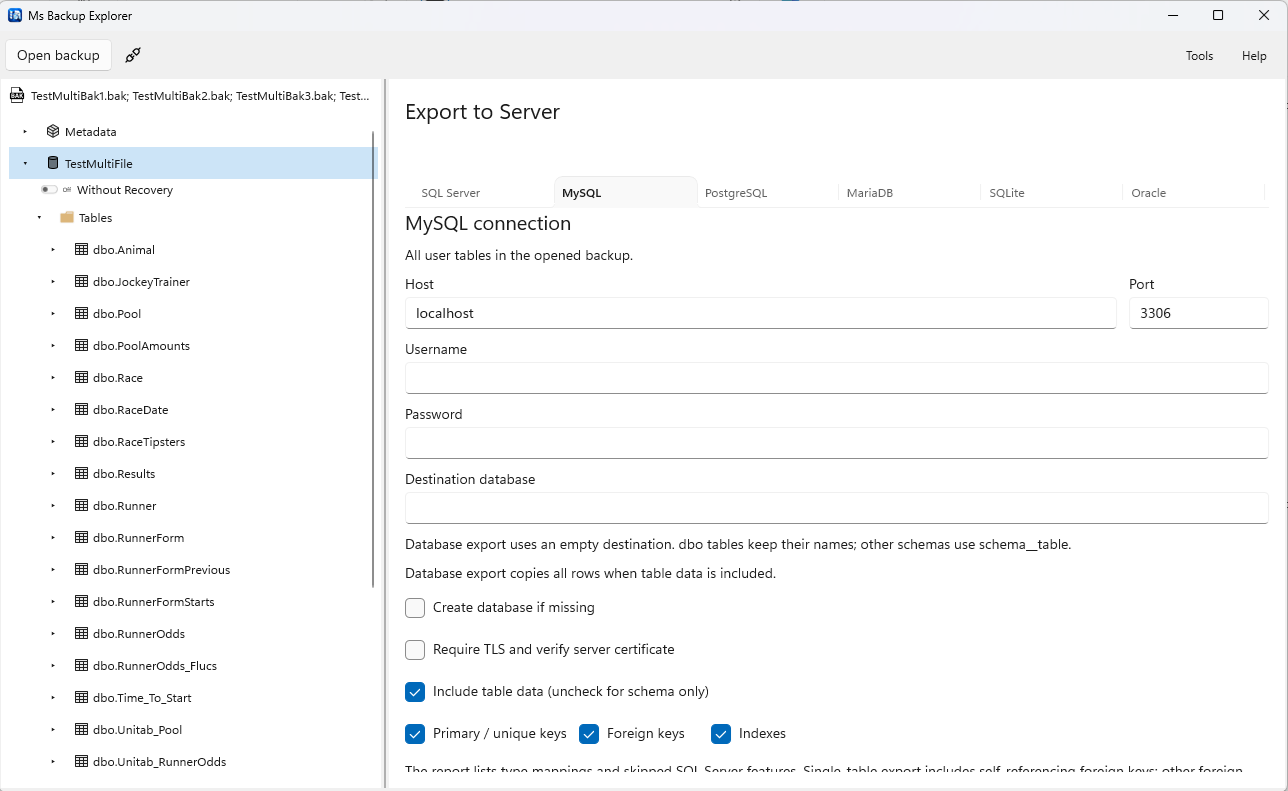
Configure the destination
- Start a standard or current-view database export and select MySQL.
- Enter the host, port, destination database and login details requested by the form.
- Review the destination and available export options.
- Test the connection where available, then start the export.
- Validate the resulting tables and data. Review a completion message or report if one is displayed.
Review the output
Review converted data types and supported table and key options. SQL Server-specific procedures are not automatically equivalent MySQL objects.
Current-view database export creates a data table from filtered rows and selected columns, without source keys or constraints. Row order is not guaranteed. Use standard export when you need its supported key options.