App & support
Register and manage Pro
Activate a licence and deactivate a computer when moving your registration.
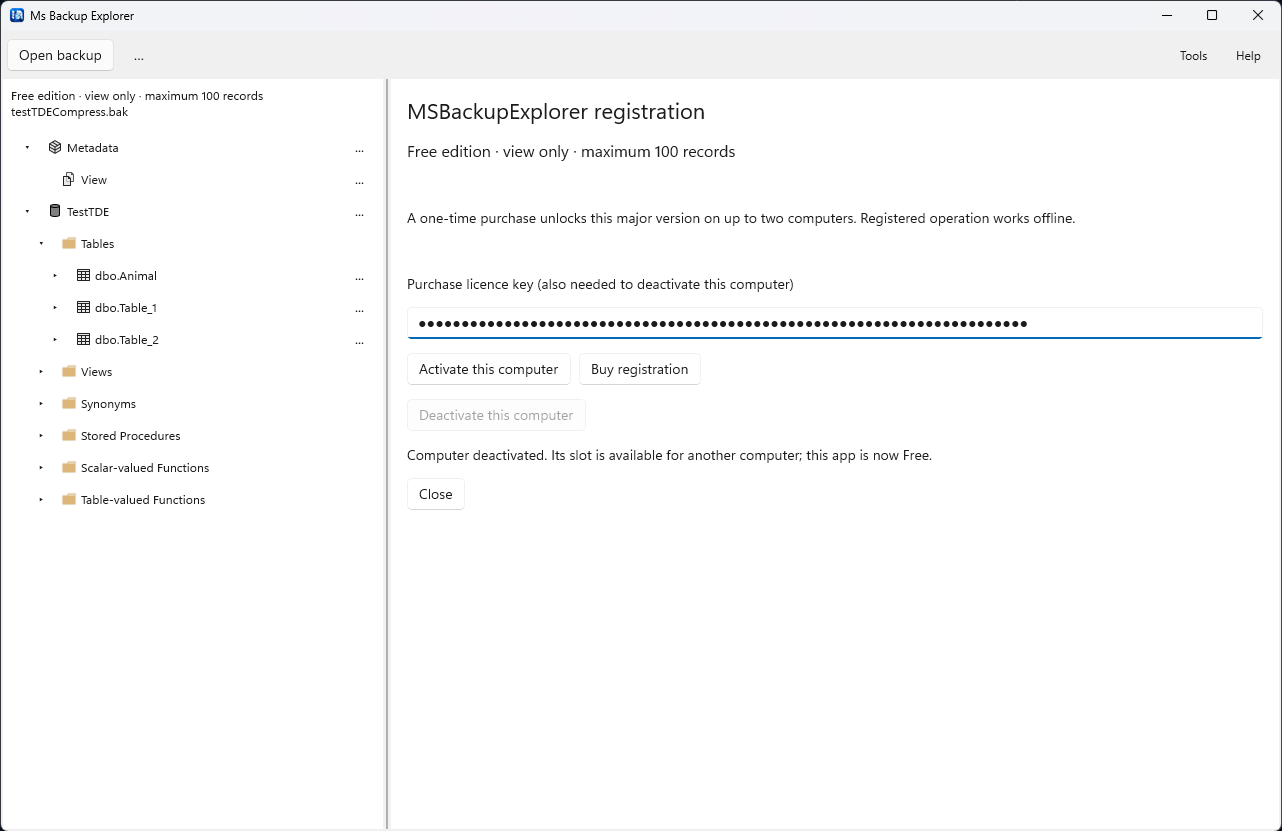
Activate Pro
- Purchase Pro through the website and locate the registration key in the licence email.
- Choose Help → Register….
- Enter the registration key and activate while online.
- Check the registered status and available purchaser email.
After activation
The purchased major version can be used on up to two computers. The signed licence is checked locally, so the app can work offline after activation.
A startup online check can confirm whether the registration remains enabled. A verified disabled response returns the app to Free. Connection failures leave existing registration unchanged; disabled registrations cannot activate.
Move or replace a computer
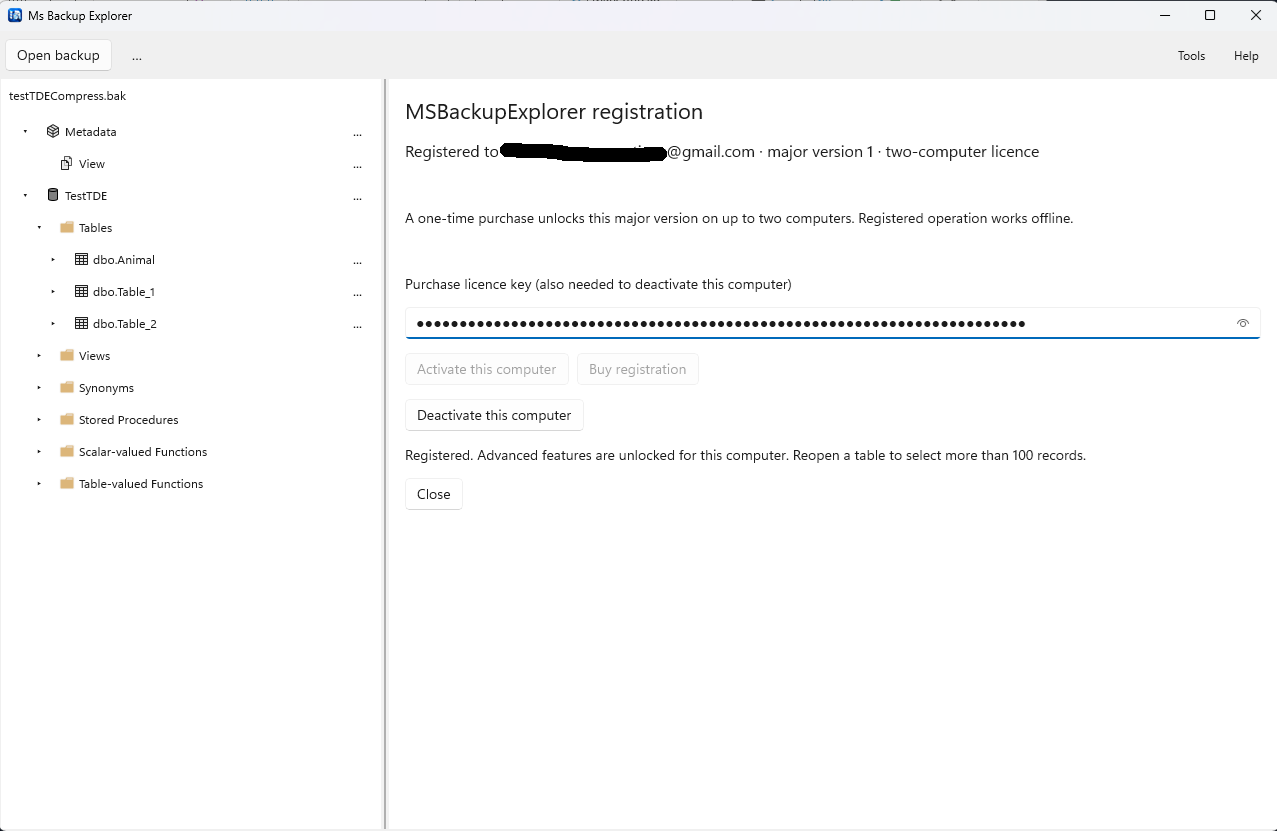
Use Deactivate this computer before moving an activation when the old computer is available. An already registered app makes deactivation available rather than activating a different key over it.
For a permanently failed computer, contact support so its activation slot can be reviewed.