Destinations
Export to SQL Server
Configure SQL Server output and validate the exported data.
Configure the destination
- Start a standard or current-view database export and select SQL Server.
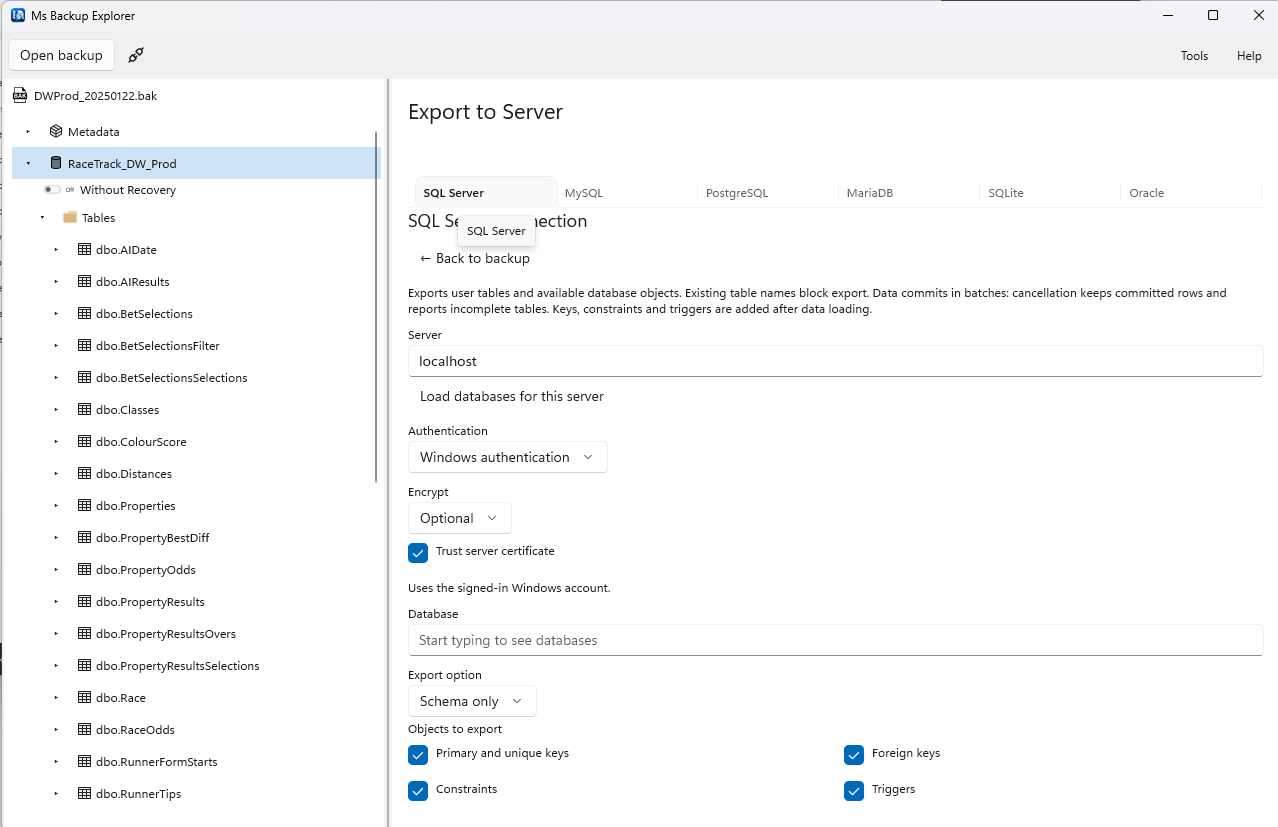
- Enter the server, destination database and authentication settings requested by the form.
- Review the destination and available export options.
- Test the connection where available, then start the export.
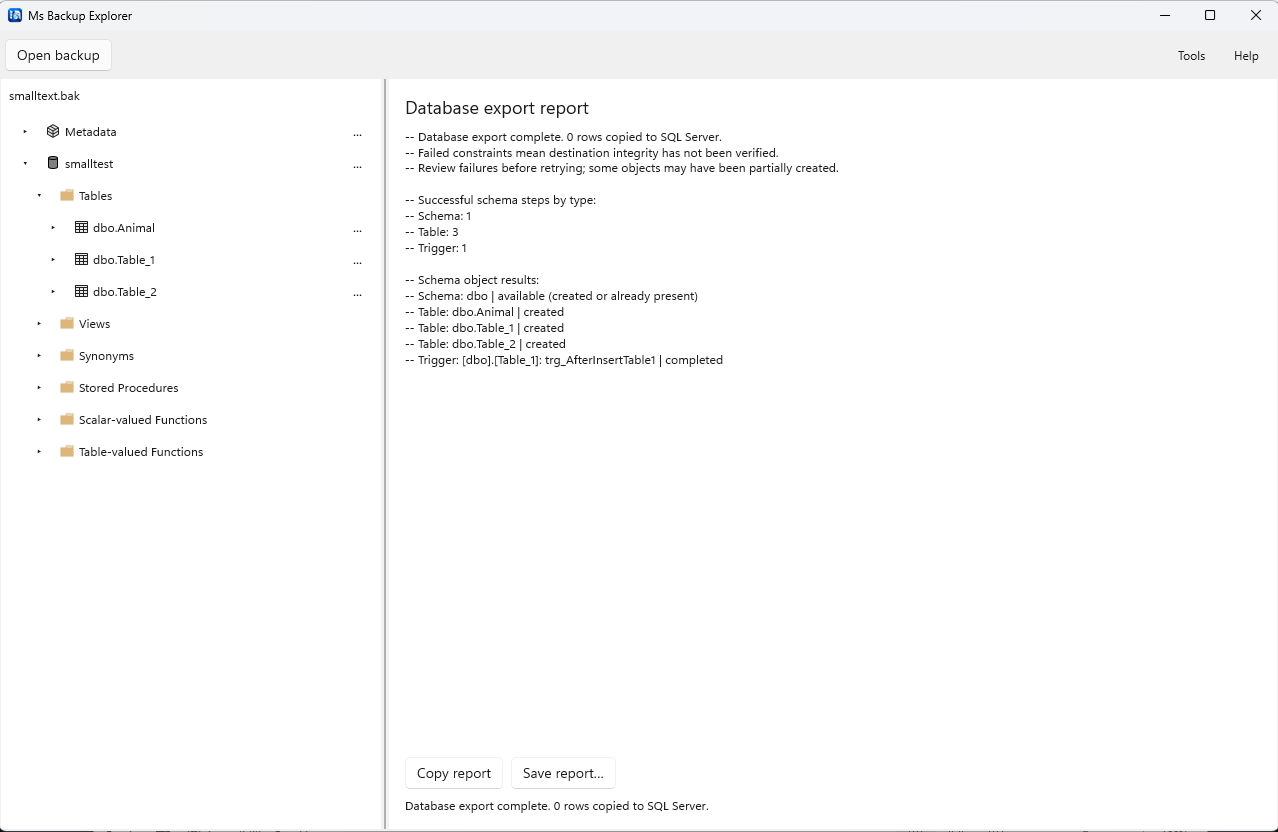
- Validate the resulting tables and data. Review a completion message or report if one is displayed.
Review the output
Standard SQL Server export can include supported SQL objects as well as tables and records. Review the object scope and available key options.
Current-view database export creates a data table from filtered rows and selected columns, without source keys or constraints. Row order is not guaranteed. Use standard export when you need its supported key options.