Export
Export tables and SQL objects
Use standard export for tables, records and supported SQL objects.
Choose the export scope
- Right-click the table, database or supported object in the explorer.
- Select its available export action.
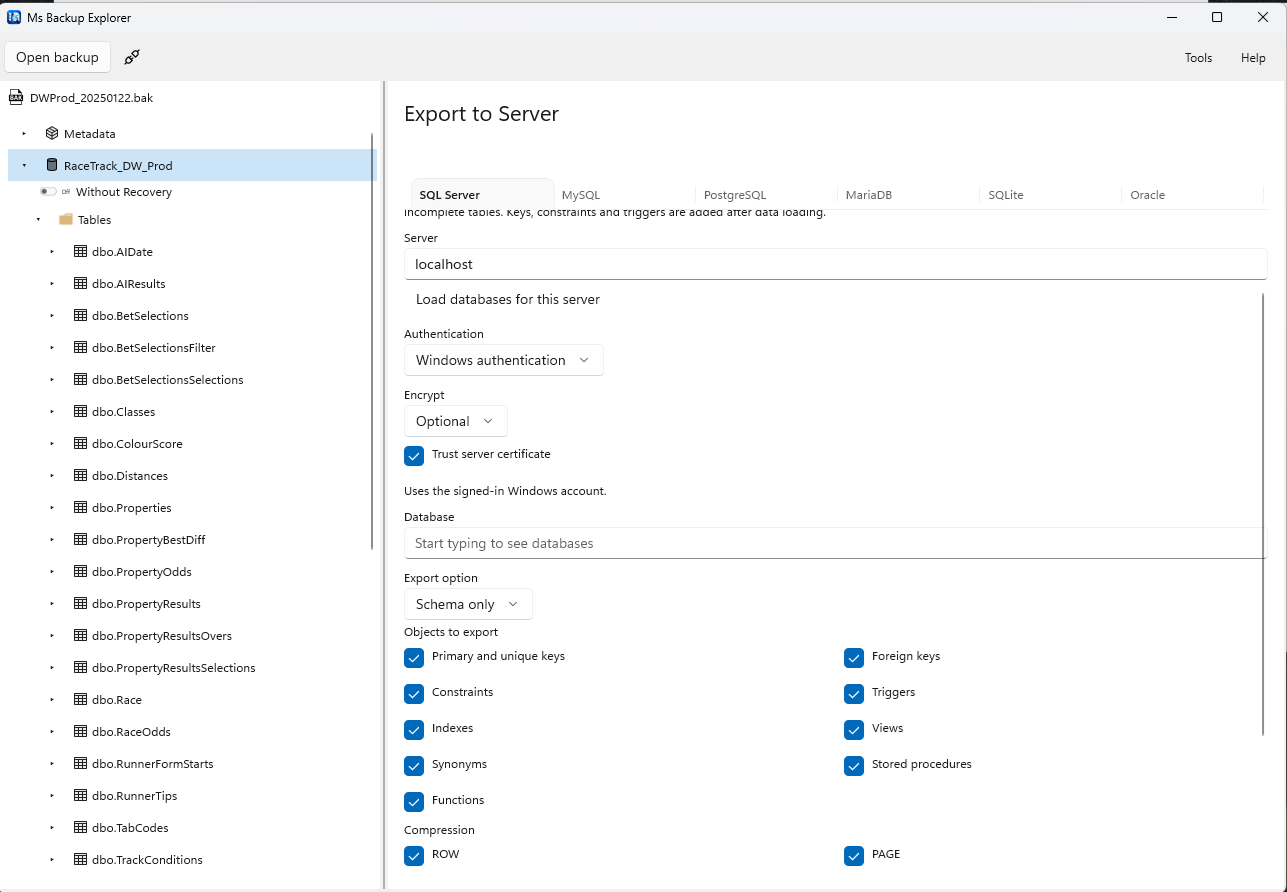
- Choose the destination tab and review the scope and options.
- Provide the destination settings and test the connection where available.
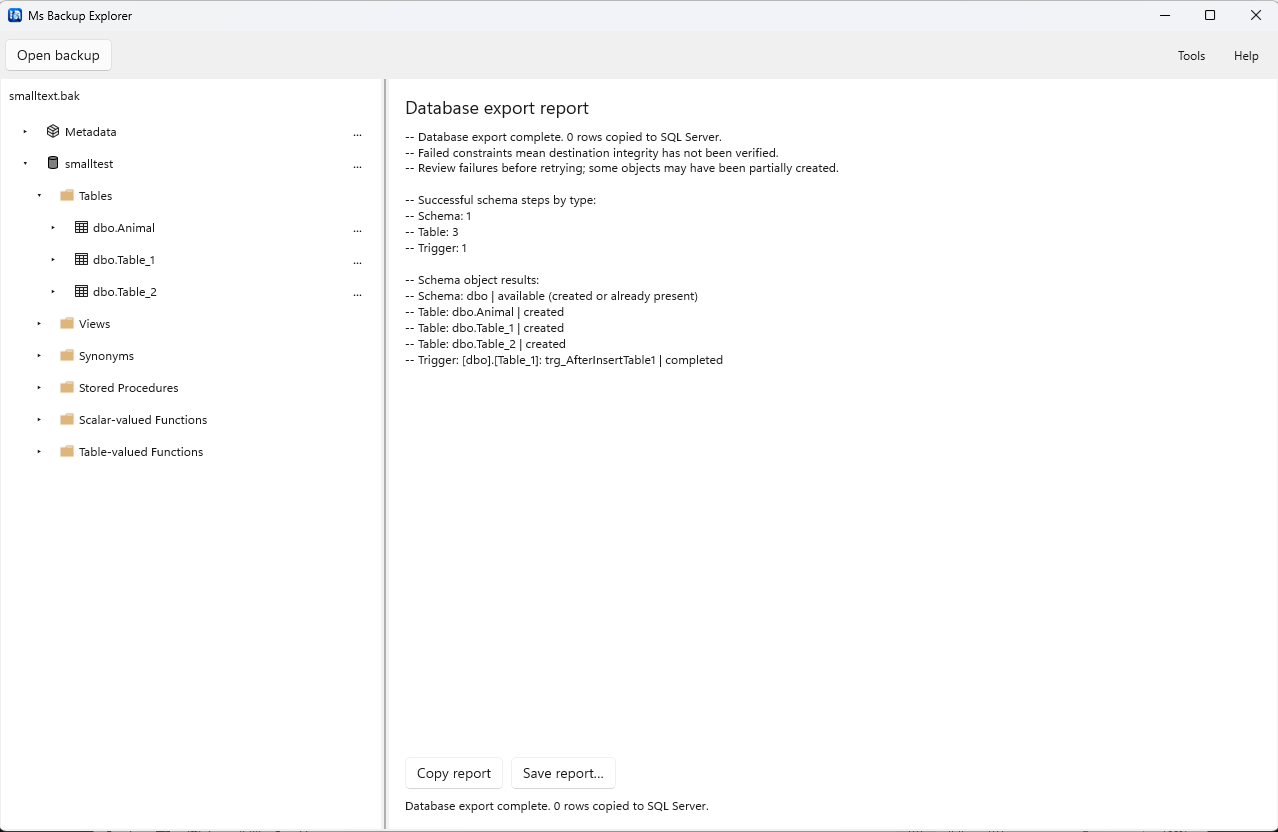
- Wait for the export to finish, then check the exported file or destination table. Review any completion message or report that is shown.
Destination differences
SQL Server export supports a broader range of objects, including supported procedures, functions, views, triggers and synonyms. Cross-database export focuses on tables, records and supported primary and foreign keys.
SQL Server-specific definitions may need adaptation for another database. Review the selected options and validate the output. A single-table SQL Server export normally closes the export form and returns to the previous screen, without opening a separate report.
Standard export or current-view export?
Standard table export does not inherit the grid filter or visible-column selection. Use Export current view to preserve those choices; current-view database export creates a data table without source keys or constraints.